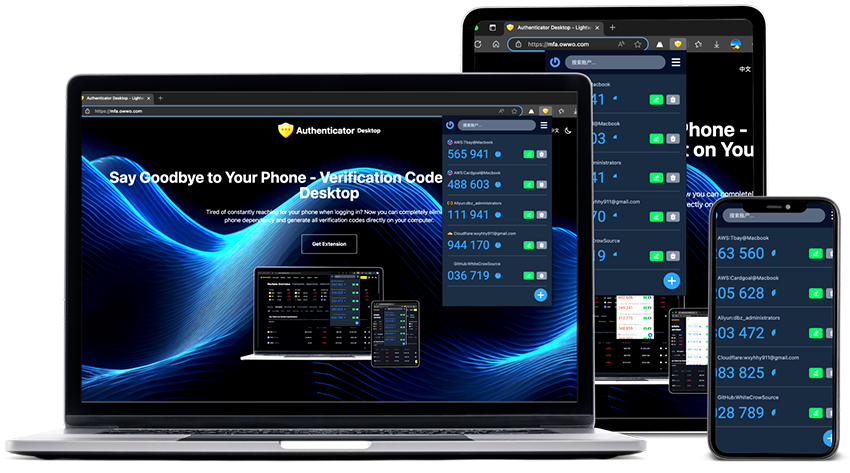
验证码放在电脑上,登录少一步 2FA codes on your desktop, one less step to sign in

Authenticator Desktop 让验证码生成、复制、自动填充和网页二维码添加都发生在浏览器里。适合每天频繁登录后台、云平台和工作系统的人。 Authenticator Desktop keeps code generation, copy, auto-fill, and page QR setup inside your browser. Built for people who sign in to dashboards, cloud consoles, and work systems every day.

免费安装插件 Install Free
Authenticator Desktop Screenshot
Built for desktop sign-in Built for desktop sign-in

验证码应该跟着你的登录页面走 Your 2FA codes should follow your sign-in page

你登录的网站在电脑上,验证码却总在手机里。Authenticator Desktop 把添加、查看、复制和填入都放回浏览器,让 2FA 不再打断当前页面。 You sign in on your computer, but your 2FA codes often live on your phone. Authenticator Desktop brings setup, viewing, copy, and filling back into the browser so 2FA does not interrupt the page you are on.

不用离开当前登录页面Stay on the sign-in page

密码输完后,不必再拿手机、解锁、找 App。验证码就在浏览器里,当前页面需要时就能直接查看、复制或快速填入。After entering your password, you do not need to unlock your phone and find an app. Codes are available in the browser when the current page asks for them.

网页二维码可以直接添加Add QR codes directly from the page

网站让你绑定验证器时,通常会在网页上显示二维码。插件可以识别当前页面里的二维码,不用截图,也不用再拿手机对着电脑扫。When a website asks you to set up an authenticator, it usually shows a QR code on the page. The extension can scan it there, without screenshots or pointing your phone at the screen.

常用网站登录更快Faster for websites you use often

后台、云平台、开发者工具、工作系统经常要求 2FA。把验证码留在电脑上,能少一次切设备、少一次手动输入。Admin panels, cloud consoles, developer tools, and work systems often ask for 2FA. Keeping codes on your computer means less device switching and less manual typing.

适合每天都要登录多个工具站的人。Useful when you sign in to multiple tools every day.

换电脑时可以恢复Recover when you switch computers

Free 用户可以用加密备份迁移;VIP 用户可以使用云同步恢复。换电脑或重装浏览器时,不必从零开始重新绑定每个网站。Free users can migrate with encrypted backups, while VIP users can restore with cloud sync. On a new computer or browser reinstall, you do not need to start from zero.

从添加到使用,都在浏览器里完成 From setup to sign-in, stay in the browser

网页二维码、插件识别、账户添加、登录填充,整个流程围绕当前网页完成。 Page QR codes, scanning, account setup, and sign-in filling all happen around the page you are already using.

网页展示二维码QR code appears

插件识别当前页面Extension scans the page

确认并添加账户Confirm and add account

登录时复制或填入Copy or fill at sign-in

每次登录都拿手机?这一步可以省掉 Still reaching for your phone every time you sign in?

手机验证器当然能用,但当你每天都在电脑上登录后台、云平台、工具站时,验证码也应该留在电脑上。 Phone authenticators work, but if you sign in to dashboards, cloud consoles, and work tools on your computer every day, your codes should be there too.

继续用手机验证器 With a phone authenticator
  • 每次登录都要拿手机、解锁、打开验证器 AppPick up your phone, unlock it, and open the authenticator app every time
  • 手机不在手边、没电、在充电时,登录立刻被打断If the phone is away, charging, or out of battery, signing in gets interrupted
  • 网页上出现二维码时,还要拿手机对着电脑扫When a setup QR code appears on your computer, you still need to scan it with your phone
  • 看一眼手机,再手动输入 6 位数字,容易打断思路Look at the phone, type six digits by hand, and lose your flow
Authenticator Desktop Authenticator Desktop
  • 验证码就在浏览器里,登录时直接复制或快速填入Codes are in your browser, ready to copy or fill when you sign in
  • 网页上的二维码可以直接识别,不用再拿手机扫电脑Scan QR codes on the page directly, without pointing your phone at the screen
  • 常用网站反复登录时,少一次切设备,少一次手动输入For frequent sign-ins, skip device switching and manual typing
  • 换电脑时可用备份或同步恢复,少一点重新绑定的麻烦Use backups or sync on a new computer to avoid setting up every site again

兼容常见 TOTP 平台 Compatible with common TOTP platforms

适用于 Google、Microsoft、GitHub、AWS、Cloudflare、阿里云、Binance 等支持标准 TOTP 的服务。 Works with services that support standard TOTP, including Google, Microsoft, GitHub, AWS, Cloudflare, Aliyun, Binance, and more.

Google Google
Microsoft Microsoft
GitHub GitHub
AWS AWS
Aliyun 阿里云
Binance Binance
Cloudflare Cloudflare
Steam Steam
Epic Games Epic Games
PlayStation PlayStation
MetaMask MetaMask
Razer Gold Razer Gold

几分钟开始使用 Get started in minutes

从安装插件到添加第一个账号,都围绕浏览器里的 2FA 绑定流程完成。 Install the extension and add your first account around the 2FA setup flow already open in your browser.

安装插件 Install extension

添加到当前浏览器 Add it to your browser

点击下方按钮安装 Authenticator Desktop,然后就可以在浏览器里添加和使用验证码。 Install Authenticator Desktop, then add and use verification codes directly in your browser.

安装插件 Install extension

如果你使用的是其他 Chromium 浏览器,建议优先尝试 Chrome 网上应用店版本。 For other Chromium browsers, try the Chrome Web Store version first.

1

添加到浏览器 Add to browser

在商店页面点击添加按钮,完成插件安装。 Click the add button on the store page to install the extension.

2

扫描网页二维码 Scan the page QR code

遇到网页二维码时,点击插件里的“扫描二维码”即可添加账户 When a setup QR code appears on a page, use Scan QR Code in the extension to add it

3

复制或快速填入验证码 Copy or fill codes faster

登录时在插件中查看验证码,或在支持的网站中快速填入验证码 View codes in the extension, or fill them quickly on supported sign-in pages

Beginner guide Beginner guide

第一次使用 MFA?从这里开始 New to MFA? Start here

下面这些问题按新手最常遇到的顺序整理,默认展开,读完基本就知道怎么开启、添加和使用验证码。 These beginner questions are ordered by the real setup flow. They are expanded by default so you can scan everything before you start.

1. MFA / 2FA 到底是什么?为什么网站要我开启?1. What are MFA and 2FA, and why do websites ask for them?

MFA 是多因素认证,2FA 是其中最常见的一种。简单说,网站不只检查“你知道密码”,还会检查“你是否拥有第二个验证方式”。这个第二个验证方式通常就是验证器 App 生成的 6 位动态验证码。MFA means multi-factor authentication, and 2FA is the most common version. The website checks not only your password, but also whether you have a second verification factor, usually a 6-digit code generated by an authenticator.

这样做的好处是:即使密码泄露,别人也还需要这组短时间有效的验证码,才能完成登录。This helps because even if your password leaks, an attacker still needs the short-lived verification code to sign in.

2. 验证码、二维码、密钥分别是什么?2. What are codes, QR codes, and secret keys?

二维码和密钥用于“绑定账号”。你只需要在开启 2FA 的时候添加一次。添加成功后,插件会根据这份密钥持续生成动态验证码。QR codes and secret keys are used to set up an account once. After setup, the extension uses that secret to keep generating verification codes.

验证码用于“登录验证”。它通常每 30 秒刷新一次。临近倒计时结束时,建议等下一组验证码再输入,避免刚提交就过期。The verification code is used for sign-in. It usually refreshes every 30 seconds. If the countdown is almost over, wait for the next code before submitting.

3. 如何给网站添加第一个验证码账号?3. How do I add my first website account?

进入网站的账号安全设置,找到“两步验证”“双重验证”“Authenticator App”“验证器应用”等入口。不同网站叫法不一样,但通常都在 Security、Login、Account Protection 这类页面里。Open the website security settings and look for two-step verification, two-factor authentication, authenticator app, or similar wording. Different sites name it differently, but it is usually under Security, Login, or Account Protection.

  • 如果页面显示二维码:点击插件里的“扫描二维码”,选择页面中的二维码并确认添加。If the page shows a QR code: click Scan QR Code in the extension, select the QR code on the page, then confirm.
  • 如果页面只显示一串密钥:在插件里选择手动添加,复制密钥并填写账号名称。If the page only shows a secret key: choose manual setup, paste the key, and name the account.
  • 添加后,网站通常会要求你输入插件生成的 6 位验证码,用来确认绑定成功。After adding it, the website usually asks for the 6-digit code generated by the extension to confirm setup.
4. 登录网站时,验证码应该怎么用?4. How do I use the code when signing in?

正常输入邮箱和密码后,如果网站要求输入验证码,打开 Authenticator Desktop,找到对应的网站账号,点击验证码复制,然后粘贴到网页里。After entering your email and password, open Authenticator Desktop when the website asks for a code. Find the matching account, click the code to copy it, then paste it into the page.

在支持快速填入的网站里,你可以直接从插件触发填入,少一步复制粘贴。常用网站登录越频繁,这个优势越明显。On supported pages, you can fill the code directly from the extension without copy and paste. This is especially useful for frequently used websites.

5. 换电脑、重装浏览器或多设备使用怎么办?5. What about new computers, browser reinstall, or multiple devices?

如果没有备份,换设备后可能需要回到每个网站重新绑定 2FA。为了避免这个问题,建议尽早设置迁移方式。Without a backup, switching devices may require rebinding 2FA on every website. Set up a migration method early to avoid that.

  • Free 用户:可以使用加密备份导出和备份导入,在新设备恢复数据。Free users: use encrypted backup export and import to restore data on a new device.
  • VIP 用户:可以使用云同步,在已授权设备之间恢复验证码数据。VIP users: use encrypted cloud sync to restore code data across authorized devices.
  • 无论哪种方式,都请妥善保存备份文件和恢复码,不要发给别人。Either way, keep backup files and recovery codes safe. Do not send them to others.
6. 哪些东西绝对不能泄露?6. What should never be shared?

不要把验证码、二维码、密钥、备份文件、恢复码发给别人。客服、群友、网页弹窗都不应该向你索要这些内容。Never share verification codes, QR codes, secret keys, backup files, or recovery codes. Support agents, chat users, and popups should not ask for them.

如果你怀疑某个账号的 2FA 密钥泄露,建议立即登录该网站,关闭旧的 2FA 绑定并重新开启一组新的。If you suspect a 2FA secret has leaked, sign in to that website, remove the old 2FA setup, and create a new one.